January 25, 2026No Comments

The Best Pick Up and Play Playdate Console Games

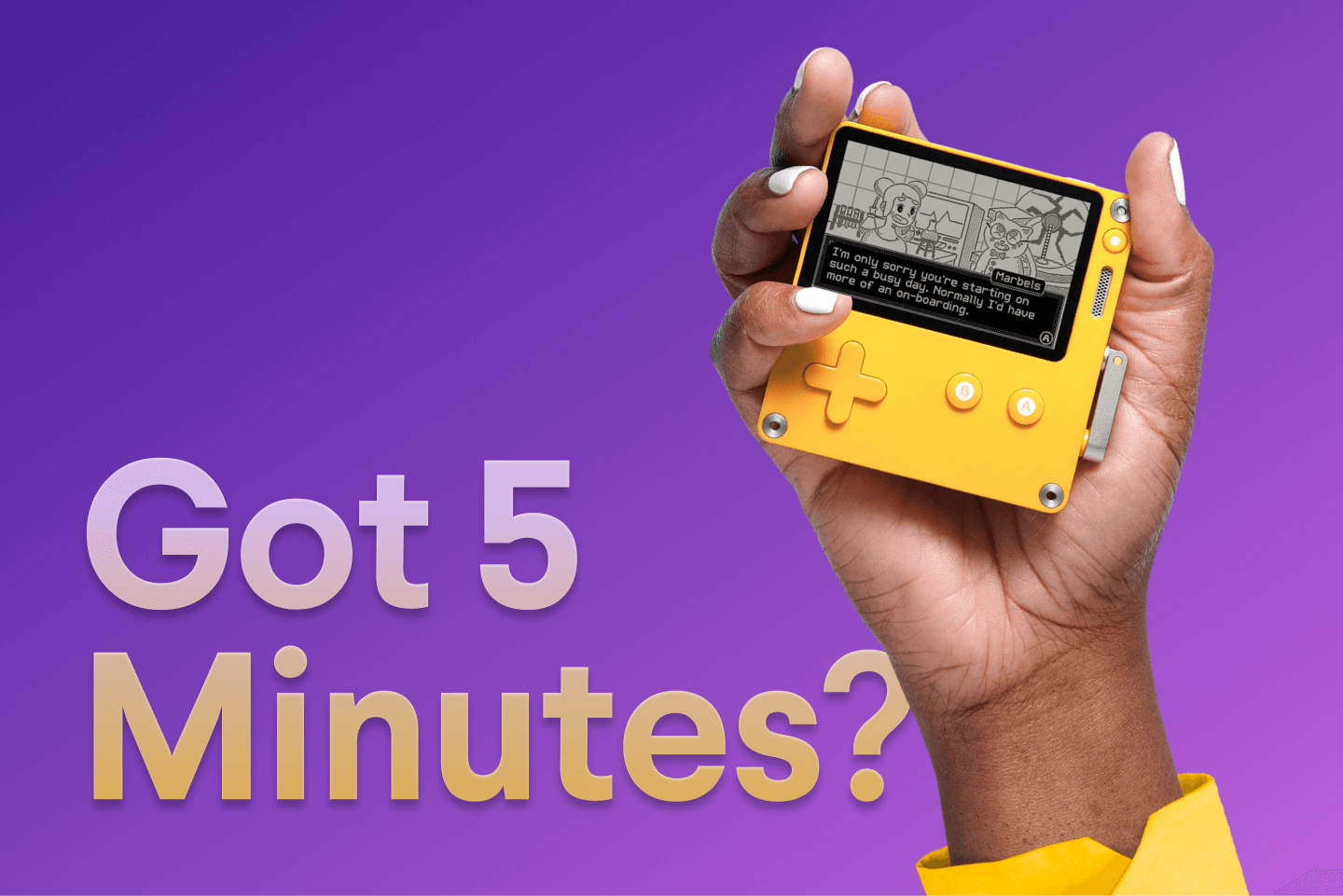
If you're unfamiliar, the Playdate is a unique, little yellow handheld video game console with a gorgeous black and white screen and a crank. It was designed by the hardware geniuses at Teenage Engineering (creators of the OP-1, KO-33, and other instruments) in collaboration with the wonderful folks at Panic (makers of Transmit and Nova who also publish video games).

The Playdate is my favorite handheld console when I'm away from home because of how easy it is to wake and play for the few minutes I have while waiting at a coffee shop or running errands. While I do enjoy bringing a GameBoy or an emulator device usually, most of those are on the larger side and don't have a sleep mode. On the other hand, the Playdate is both tiny and has a sleep mode!

I'm a huge fan of longer and more involved games for extended play sessions. But when I just have a handful of minutes to play, it's difficult to jump in and out of games where I need to remember context or what I was doing last I played. So, I've been trying out a bunch of shorter games you can easily play for just a few minutes each play session on the Playdate. The Playdate has a plethora of exclusive games on their curated Playdate Catalog (think Apple App Store), but you can also just buy or find games online at places like Itch.io.

I'm Making a Playdate Video Game

Oh! And as a PSA, I'm currently working on my first ever video game after being a player of games for my entire life. It's going to be an adventure survival horror game, and it's going to be exclusive to the Playdate! But no worries if you don't have a Playdate console, you'll be able to play it on a computer using an emulator if that's something you'd like to do. Watch this blog or follow me on Threads & Instagram to stay updated.

Here are the best pick up and play Playdate games I've found so far:
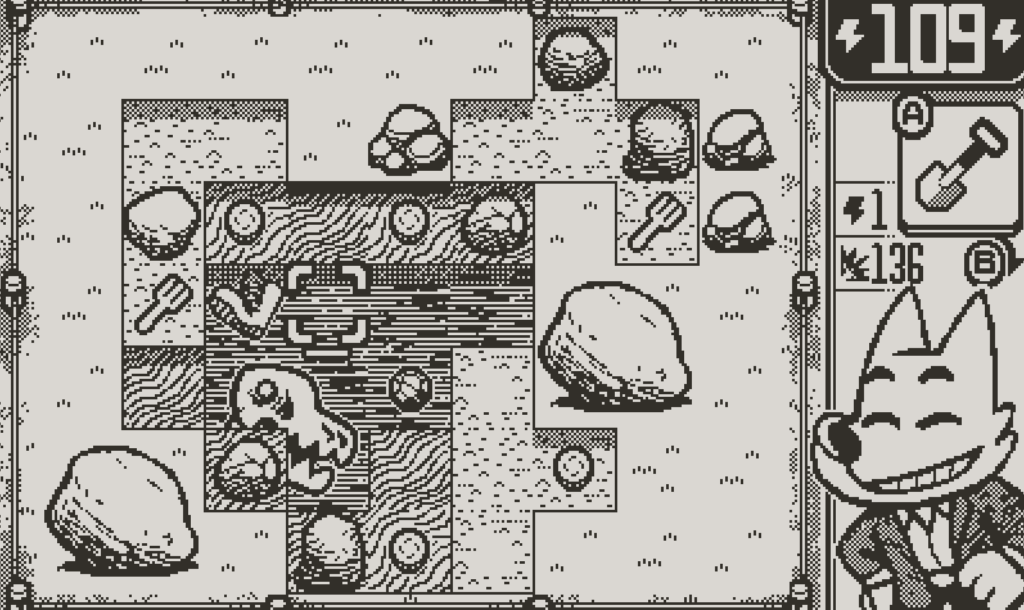
Dig Dig Dino Playdate console game screenshot in black and white

Dig Dig Dino

Made by Dom2D & Fáyer, Dig Dig Dino! is a game about digging... for dinosaurs bones and other treasure. Each dig session is just a couple minutes and surprisingly cathartic! It has some very light rogue elements such as permanent unlocks to make equipment better which makes your dig sessions easier. The goal is to find enough bones to open up new dig sites (up to 3), and figure out the mystery of an alternate historical telling of what happened to the dinosaurs.

Link to Dig Dig Dino! on the Playdate Catalog →
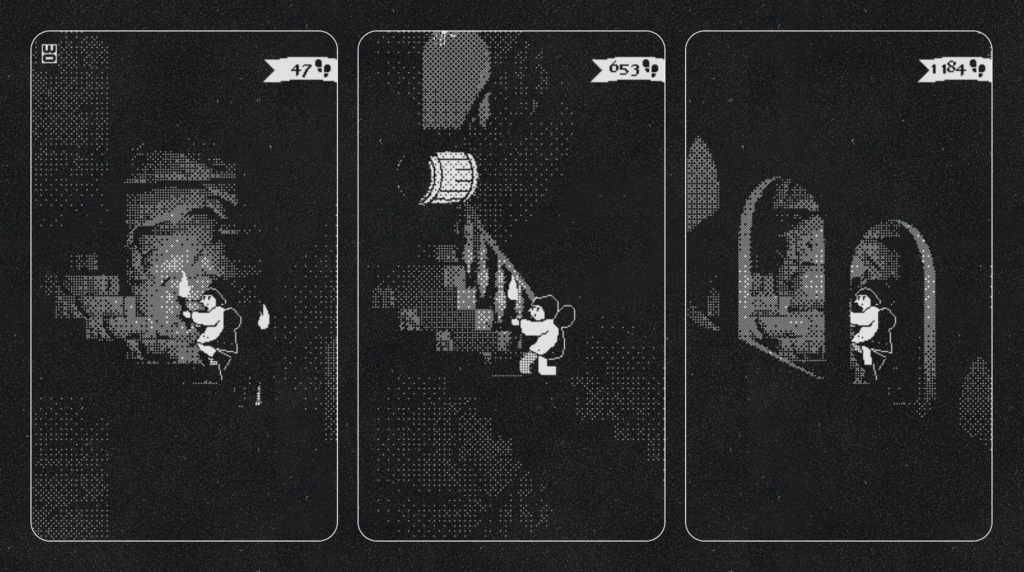

A Fool's Errand Playdate console game screenshot in black and white

A Fool's Errand

Made by IORAMA, A Fool's Errand is quite a unique experience on Playdate. Not only is the style of the game incredible, It's one of the very few games I know of that use the Playdate console screen in a 90-degree rotated orientation! It's also a game controlled fully by the crank, which is always a fun twist. Runs don't last super long (unless you get really good then it's seemingly endless), and it's super quick to start a new run with basically 0 other interfaces than the game.

Link to A Fool's Errand on the Playdate Catalog →
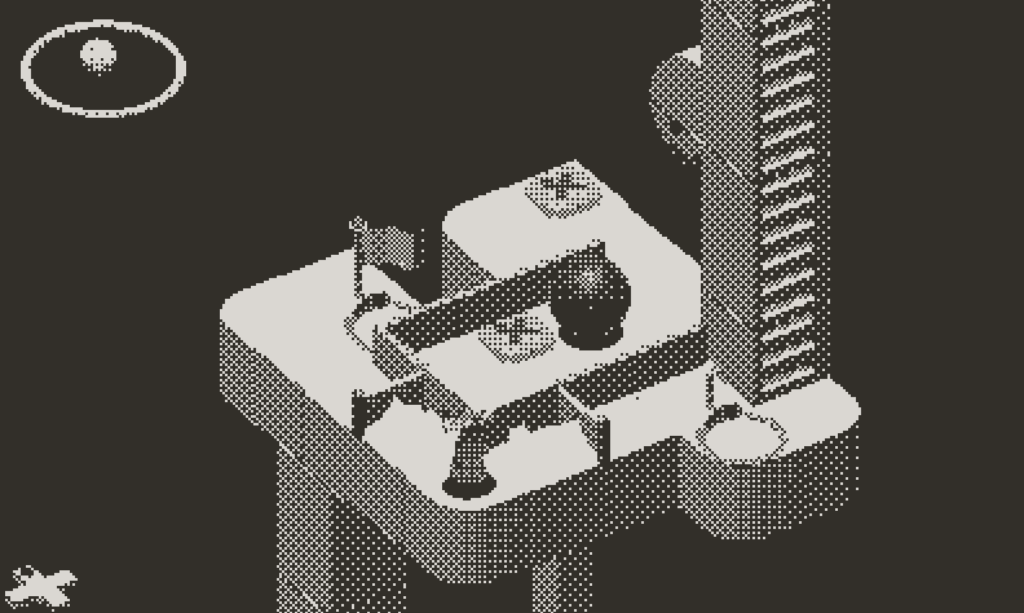

Diora Playdate console game screenshot in black and white

Diora

Described as "Playdate's Monument Valley", Diora has been one of the most anticipated Playdate Console games that I've seen since Lucas Pope's Mars After Midnight. Diora is a 3D puzzle game which blends the use of D-pad movement to move your character, and the Playdate crank to rotate your view of the environment around a central axis.

While some of the levels can take longer if you get stumped, the challenges are quite self-contained with their own checkpoints, so you can take another try at the puzzle in just a few minutes. While there is a narrative (at least where I currently am in the game), it's very light and doesn't take much time to get through.

Link to Diora on Playdate Catalog →
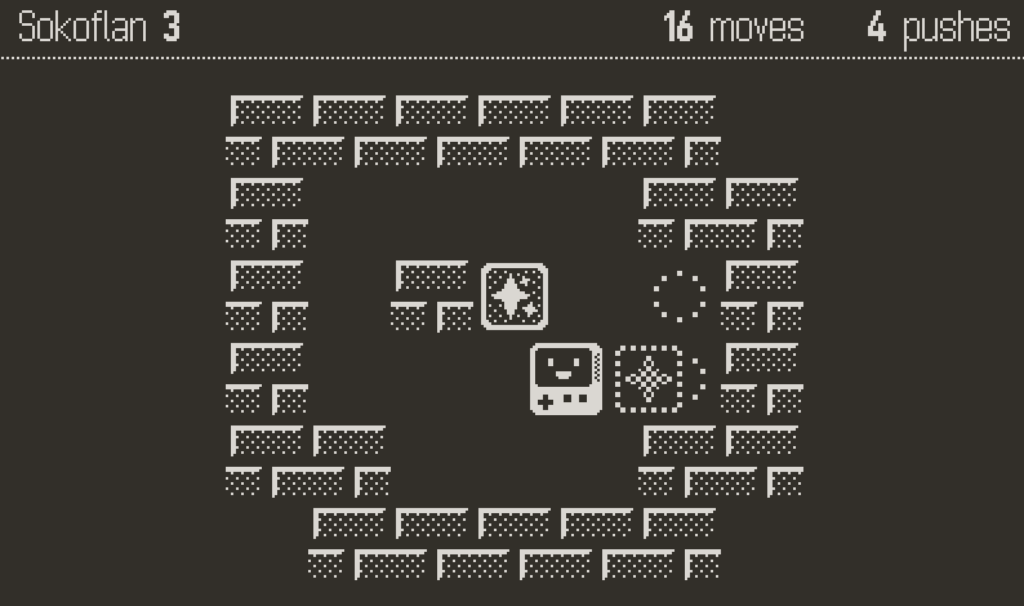

Soko Playdate console game screenshot in black and white

Soko

Soko is a small Sokoban style game for the Playdate, with over 400 puzzles and 7 sets of levels. The game is ridiculously cute and easy to learn. I enjoy it for short game sessions because you are able to work on the puzzles at your own pace given there are no reaction times or high scores to set (unless you want to of course). This is a Playdate game you can even play with something else on in the background, which is great for fellow ADD folks!

Link to Soko on Playdate Catalog →
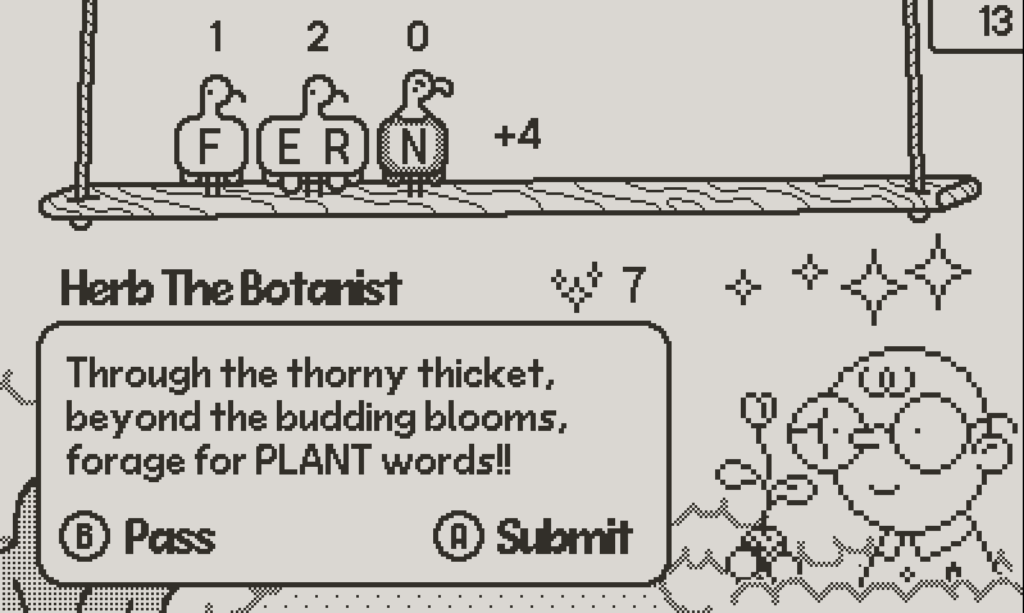

BWIRDS Playdate console game screenshot in black and white

BWIRDS

BWIRDS is a fun, unique take on word games where you are limited to the "bwirds" available to you as the letter pool you can use. You also need to bring the requester a word within a specific theme such as plants, food, etc. The constraints of this word game I think are what make it enjoyable, with just enough thinking without being frustrating! I really enjoy it for short game sessions, reminds me of when I used to play Words with Friends a while back.

Link to BWIRDS on Playdate Catalog →
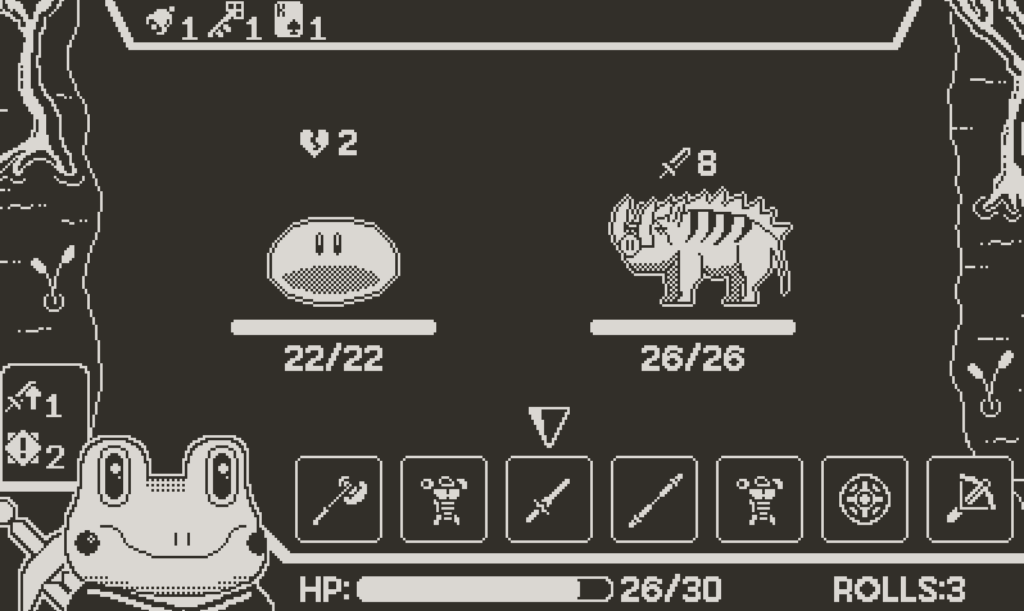

Ribbit Rogue Playdate console video game screenshot in black and white

Ribbit Rogue

As a sucker for rogue style games (basically unlocking more the more you play), I was yearning for something like that on the Playdate. Ribbit Rogue fits this pretty darn well, with a quirky thematic spin on your fantasy rogue style game. The rounds are just a couple minutes typically, and have a really fun crank mechanic built in to the dice rolling part of the game! My only small gripe with the game is there does not seem to be any permanent unlocks (I could be wrong as I have only played a few hours).

Link to Ribbit Rogue on Playdate Catalog →
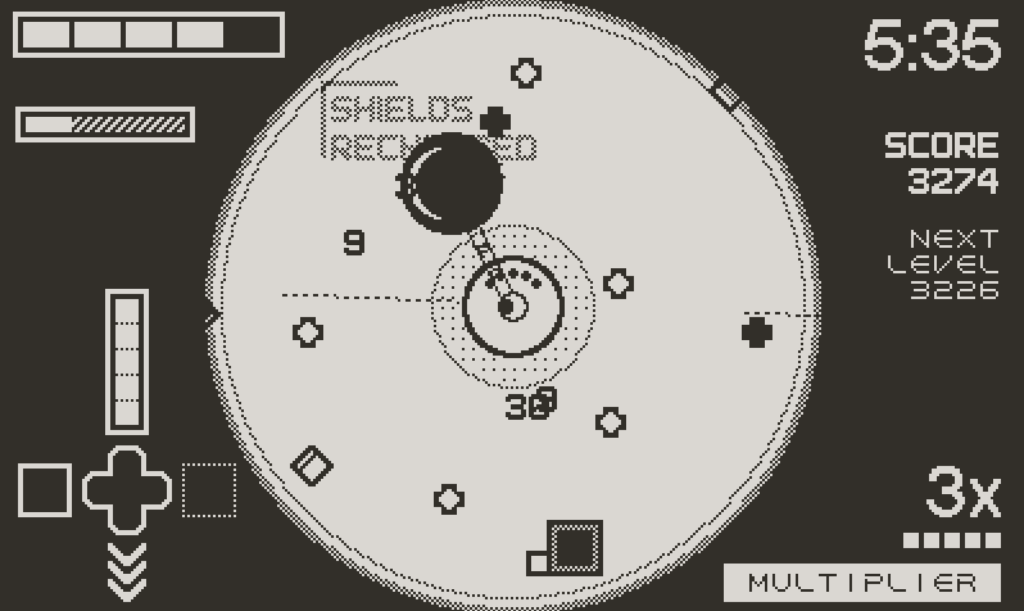

Fullcrum Defender Playdate console video game screenshot in black and white

Fulcrum Defender

Fulcrum Defender is an arcade action game exclusive to the Playdate Catalog from the creators of FTL: Faster Than Light and Into the Breach. You control the game with the D-pad and the crank to fend of waves of shapes (enemies) and create an optimal build that works for your play style. Since I haven't gotten very far, runs last just a few minutes, but I've heard they can be longer if you get better. So maybe just don't get too good at it!

Link to Fulcrum Defender on Playdate Catalog →
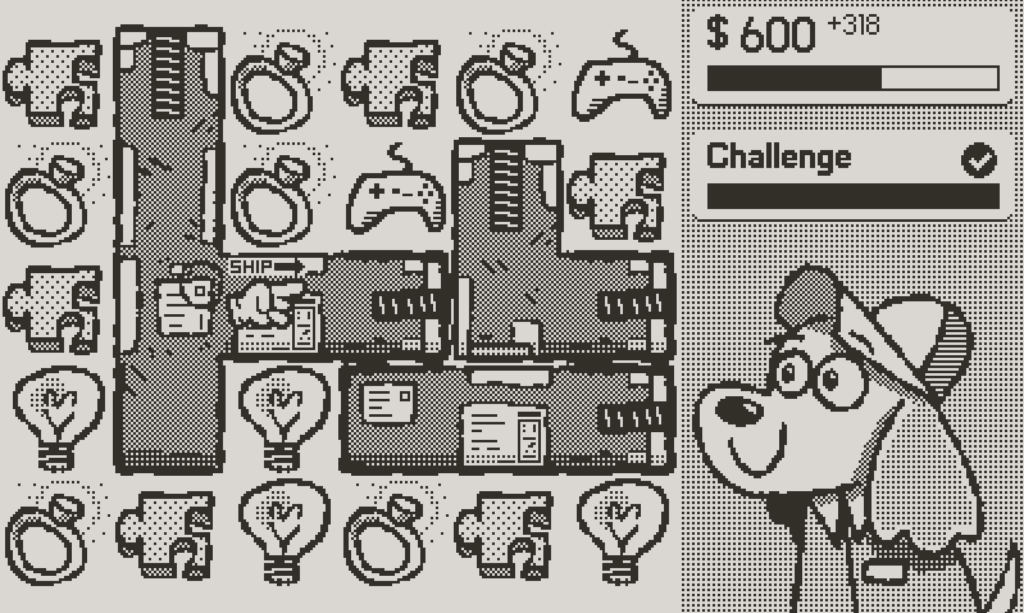

Pick Pack Pup Playdate console video game screenshot in black and white

Pick Pack Pup

Pick Pack Pup for the Playdate is one of the games that comes included on the device (in Season 1). Pick Pack Pup is similar to your classic "match 3" style games, except you are trying to match similar items to pack up for the factory your player works for. Something that sets this apart from the typical style of these games is the fact that you can move the items wherever you want (as long as there isn't a box in the way), in contrast to only moving 1 block to an adjacent tile you're usually limited to.

Link to Pick Pack Pup on Playdate Catalog →

Skwish Playdate console game screenshot in black and white

Skwish

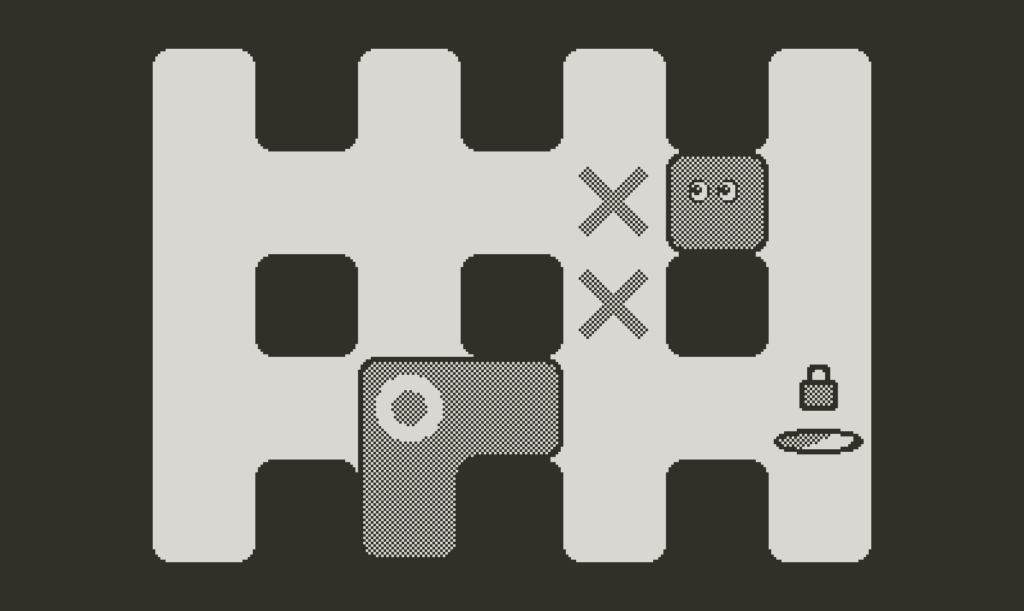
Skwish is an interesting puzzle game on the Playdate console. It combines both pushing and merging blocks in ways to get from one side of the puzzle to the other. This game provides just enough thinking to be fun without getting too frustrating, very easy to pick up and play as needed!

Link to Skwish on Playdate Catalog →

Blockdate Tetris Playdate console video game screenshot in black and white

Blockdate

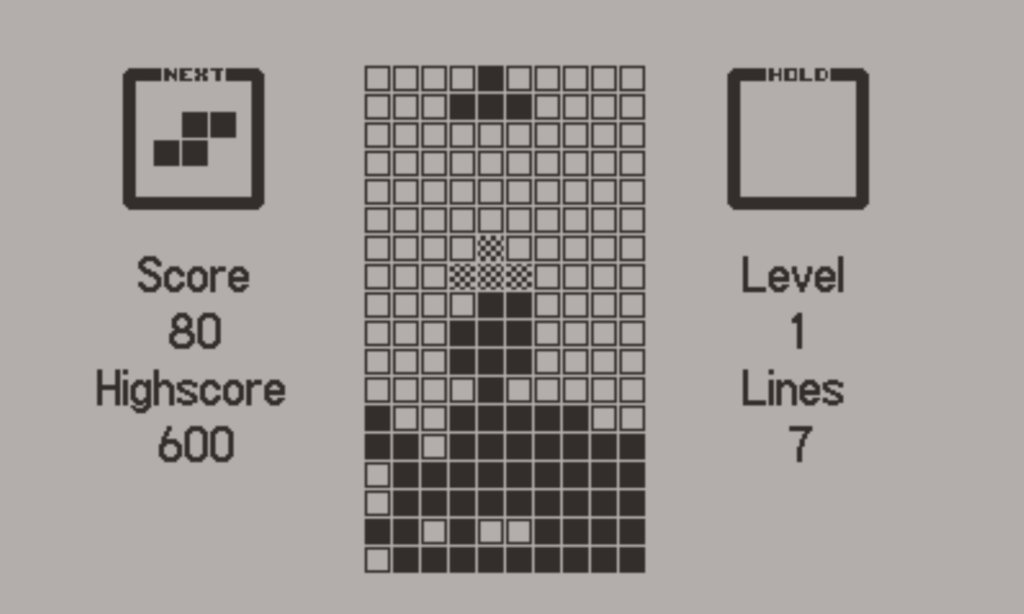
It's Tetris, but on the Playdate. Not much else to say about it!
Link to Blockdate on Github →


Mega Dystopia Micro Architect Playdate console video game screenshot in black and white

Mega Dystopia Micro Architect

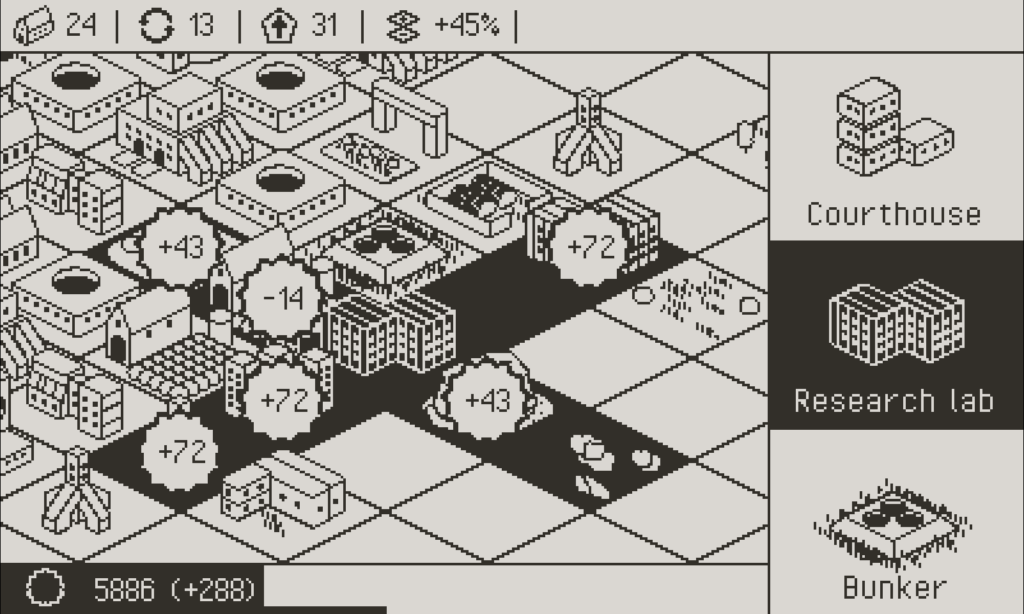
Mega Dystopia Micro Architect (or MDMA lol) is a tiny city builder with a daily mode that is infinitely replayable. You're trying to build the most efficient city, and doing so in many different "runs". You unlock permanent upgrades the more you play, which makes it easier to continuously get higher and higher scores!

Link to Mega Dystopia Micro Architect on Playdate Catalog →

Crank Boy Playdate console video game screenshot in black and white

Honorable Mention: CrankBoy

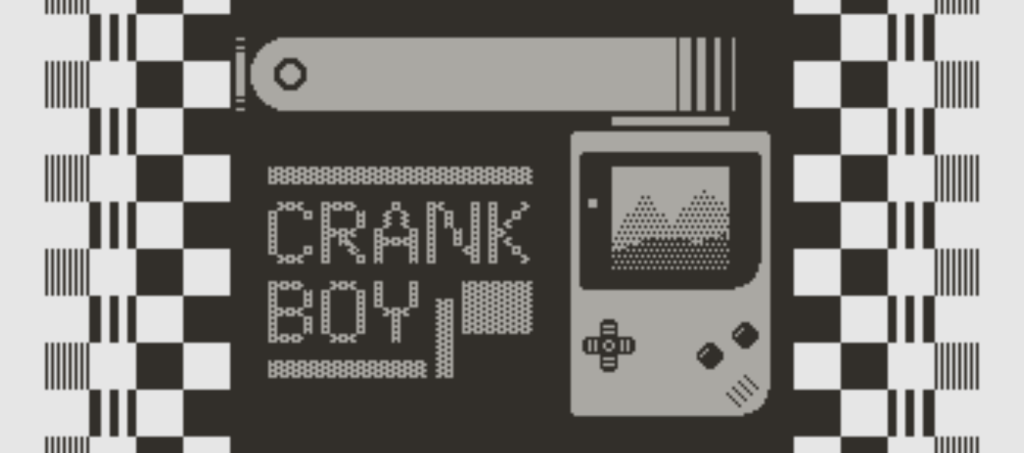
This is an honorable mention because CrankBoy isn't technically a game. However, based on the name you might be able to guess that this is an emulator for GameBoy on the Playdate. I'm not sure what emulation code magic is being done here, but you can run just about any GameBoy or GameBoy Color game on the Playdate. This opens up a world of other games you may (or may not) have grown up with such as the Pokémon games, Dragon Quest, Zelda, and many more!
Link to CrankBoy on Github →

February 1, 2025No Comments

Perfect Gameboy Overlays Template for Emulators with Square Ratio Screens

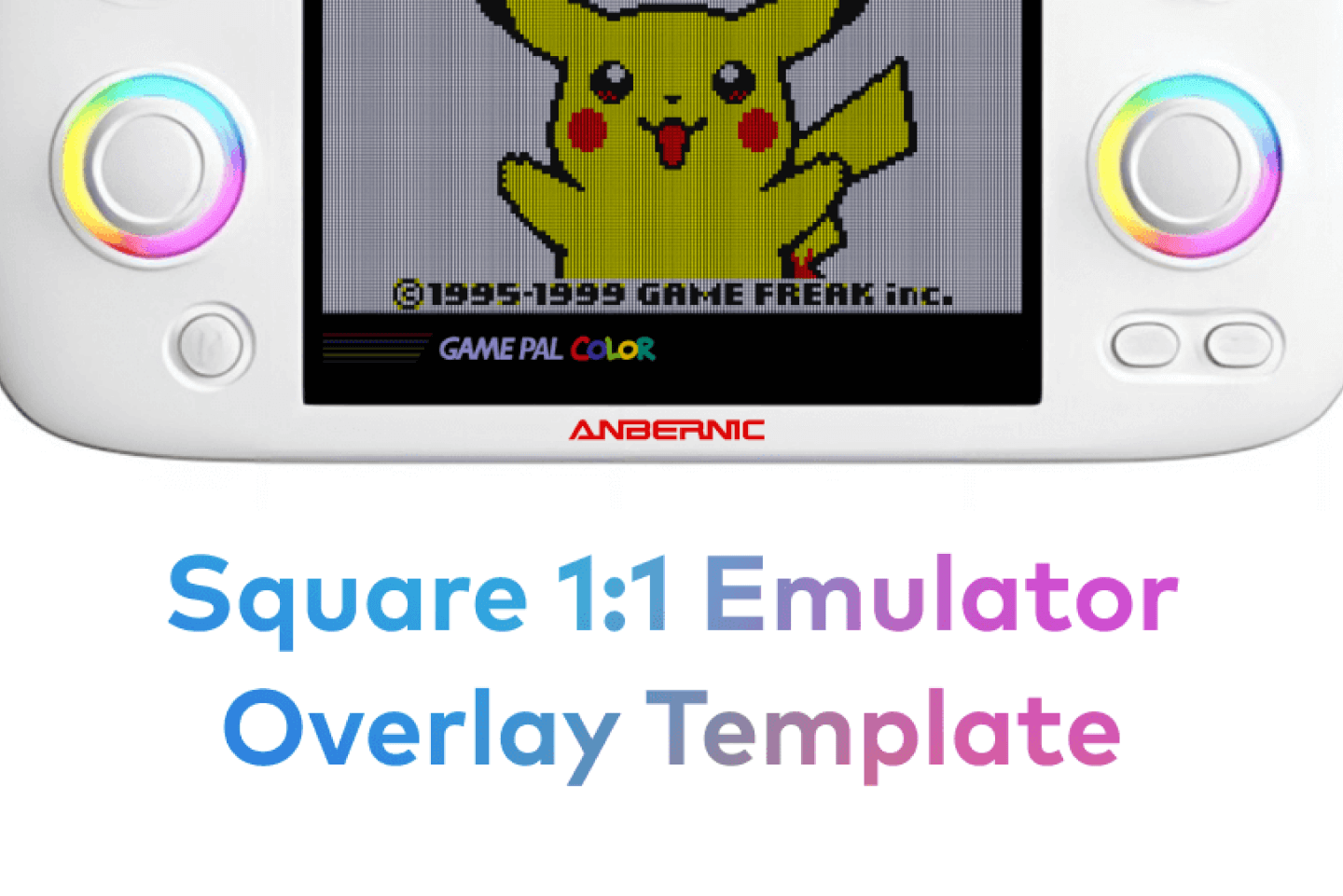
I recently purchased an Anbernic RG Cube XX to add to my ever growing handheld collection. I love getting unique handheld gaming devices, and the Anbernic RG Cube XX caught my eye due to it's 1:1 ratio screen.

Most handhelds have a 2:3 or 3:4 aspect ratio screen, making them great for Gameboy Advance games, but not so great for original Gameboy and Gameboy Color games.

Once the RG Cube XX arrived, I got MuOS installed, added my ROM files, and dove straight into learning how to add overlays and shaders to really get that old school texture while keeping the beauty of the IPS screen. Retro Game Corps has this great guide on YouTube, which I recommend if you want to add them to your own emulator devices.

After following the aforementioned guide, I realized the tutorial only provided overlays for 2:3 or 3:4 ratio screens. Like I said, the RG Cube XX has a 1:1 screen, so none of the overlays or settings mentioned in the video worked nicely.

So me being who I am, I decided to make my own overlays and have made them available to download for free. They include layouts for Gameboy DMG, Gameboy Pocket, Gameboy Color, and Gameboy Advance! I also included a fun version of each with a nod to the app I made with my friend Jeremy called GamePal.

To be transparent, these are inspired on the Perfect Overlays by Reddit user 1playerinsertcoin. I took the grid they made and translated it to a 720x720px size, including a border to account for the weird 10:9 ratios that original Gameboy games had!

Here are 2 options for swapping out the overlays, whether you want to use mine or make your own!

Create Your Own Using the Figma Template

If you'd like to go the extra mile, you can make your own overlays as well. I've put the files that I used in a template format on Figma for you to use and have fun with.

You can find the Figma template here →

Download My Pre Made Overlays

Instead, if you just want to download and start using the overlays yourself, follow these instructions to download and start using them! Note that these instructions are specifically for MuOS, for other emulator OS I recommend looking at this guide from Retro Game Corps.

  1. Download the overlays (including the necessary config files) for free here.
  2. Shutdown your emulator device and put the SD card with your OS into your computer.
  3. Unzip the file.
  4. Place all of the files from the zip file in MuOS → Retroarch → Overlays → Place Here
  5. Eject your SD, put the SD back in your emulator, and turn your emulator back on.
  6. Change your Retro Arch settings to use the overlays specific to each Core.
  7. Ready to go!

March 11, 2022No Comments

How Taking Care of Yourself Takes Care of Your Team

Join my newsletter →

After hiring our 3rd designer at Northstar, I’ve been shifting a lot of my growth to learning about being a leader and mentor for my team. It’s a huge challenge for me personally, who has been mainly an IC designer in every role I’ve had in some capacity.

Now that things are starting to shift and my day-to-day is more around decision making and process iterations, people look to me for answers and guidance each day. I don’t know about you, but it’s scary to have that pressure every day you show up to work.

I know it comes with the territory and I asked for this in a way, but some days get harder to work through.“If I just put in a few more hours, our goals will be achieved more quickly.”

“My team is counting on me, this has to be done tonight.”

“Eh, I can skip lunch for this call. I’ll eat after!”

“I can’t sleep in, what if an emergency happens even though it’s 7:00am on a Thursday?”

But after one-too-many weeks of this, I’d be setting myself and my team up for a worse situation.

When I don’t take care of myself mentally or physically, I slowly expend my energy exponentially. I’m not as alert in meetings, I’m distracted by stress, I’m overly irritable, I’m not myself.

I want to be the best version of myself for those around me. That way, I’ll be better able to do what I do best. I listen better, I’m able to focus easier, I’m more open to receiving feedback, and I give better feedback myself.

What You Can Do

You need to put yourself first. Not in a malicious way, but in a way that sets healthy boundaries between work and life. Boundaries that put your health and comfort first, in a way that lets you do your best work. It’s one thing to be self-disciplined and motivated, but another to drive your life into the ground for it.

Remember to spend time with yourself and with your family/friends. Do things that bring you joy and pursue your hobbies. Remember to exercise, eat right, and take care of your body. Go to therapy and work on yourself. Maybe try meditation or yoga before work. Remember to do nothing sometimes too, just exist and listen to the world around you.

Put yourself before anything, the people around you will be happy you did.

January 19, 2022No Comments

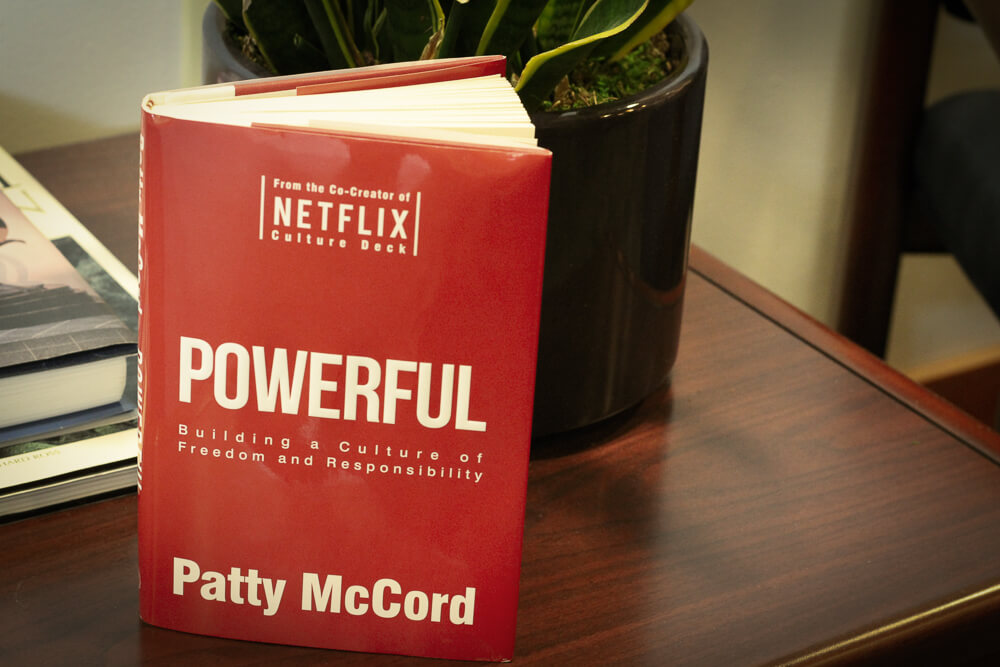
Leadership Book Recommendation, Powerful by Patty McCord

I'd like to recommend one of my favorite books I've ever read, Powerful by Patty McCord. Patty was a Co-Founder at Netflix and worked there for 14 years, developing the culture of the company.

Read more

August 1, 2021No Comments

What to Do Your First Week of a New Design Job

So it's your first week in a new design role, what do you do? What should you have prepared? Here are 10 ways to set yourself up for success.

Read more

July 6, 2021No Comments

Practical Typography Tips to Improve in Product Design, UX, Web, and Graphic Design

Here are some basic tips to improve typography in design I've learned over the last 10 years. Helpful for all areas and types of design.

Read more

May 12, 20211 Comment

How to Use and Choose Text Colors in Product Design

One of my biggest struggles starting out in Product Design was the ability to make consistent color palettes. Creating typography and color palettes that worked within product constraints without sacrificing recognizability on countless screens. I needed a reliable way to experiment with composition without ditching pre-existing styles and screens. Using different shades of grays, sacrificing accessibility, and not knowing when or how to use colors without a strict system in place was frustrating and limiting.

After a long time of experiencing this frustration, once I started learning to code a few years ago things clicked for me. I could use opacity! With opacity, I could blend layers of elements together and still maintain a harmonious color palette, build more accessible products, experiment with layout more, and take another problem off my plate to think through.

Using in Product Design Practice

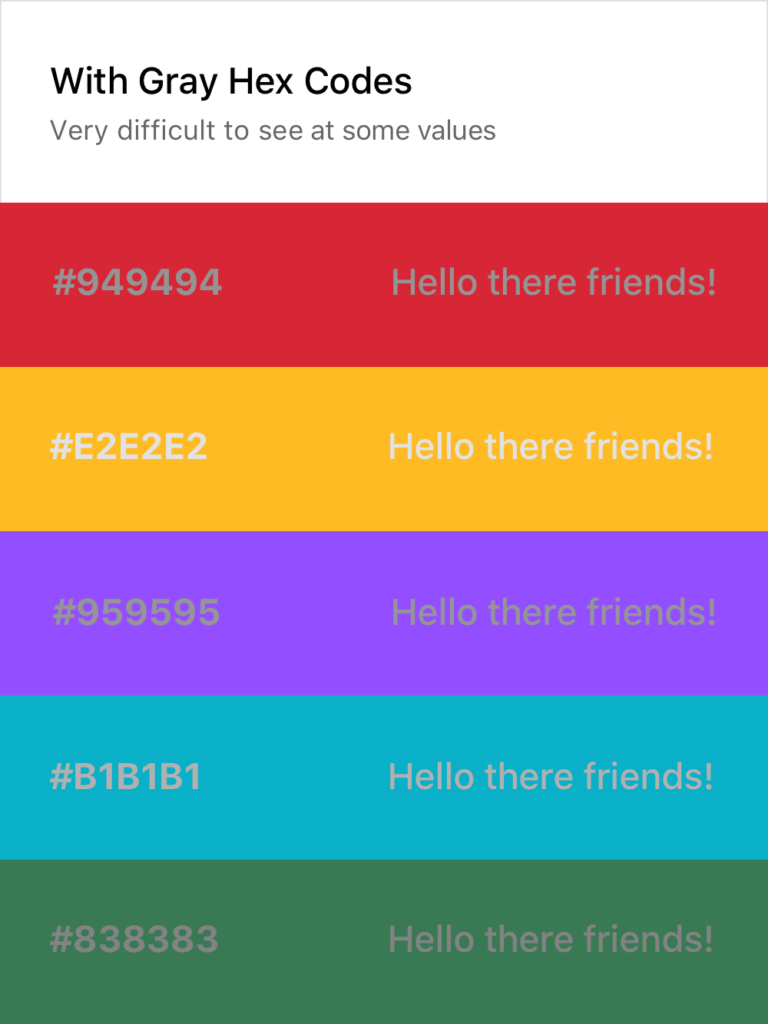
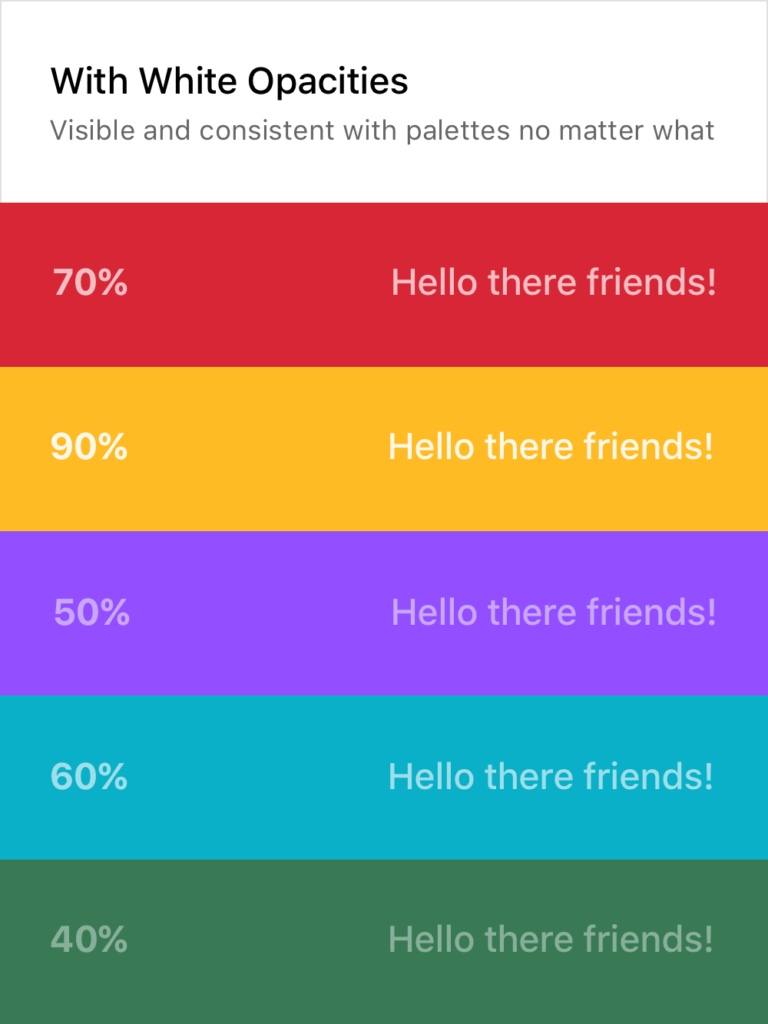
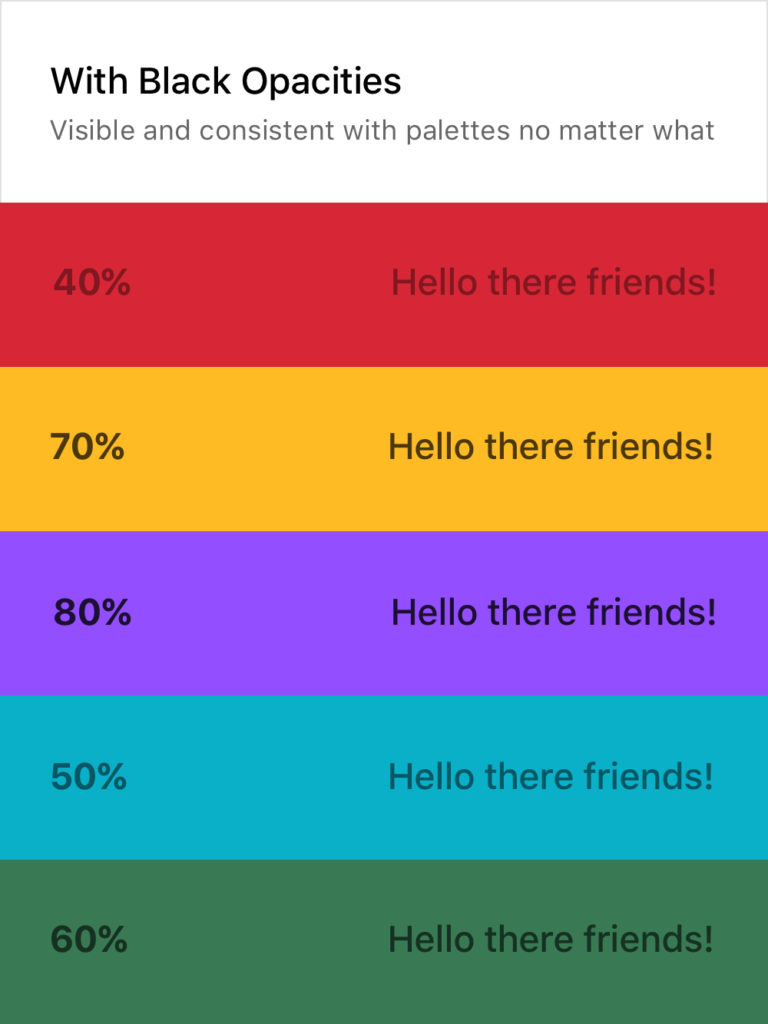
Using different shades of grays with determined hex codes can lead to poor contrasts between elements and leave interfaces inconsistent, inaccessible for some users, and even just plain ugly sometimes. Instead, I found using a pure white and a pure black (or with a tiny amount of hue if you’d like!) as a starting point and taking advantage of opacity to be a much better tactic. This makes it much easier to develop color palettes, design systems, product iterations, and work better (and quicker!) towards product goals.

Not making sense yet? No worries! Here’s a visual:

As you can see, the usual approach on the left makes it quite difficult to consistently create text that is legible without using a pure white or black on top of the color or having a very specific and well-maintained system in place. Both of these solutions are tedious and hard to implement across teams and passing off to developers.

Setting Typography Rules for Color in Product Design

The white and black opacity approaches on the right are consistently legible and don’t require verbose rules and guides to follow. Although the ones above are random, I usually stick to 20%, 40%, 60%, 80%, and 100%, giving each their specific use case. This dwindles the amount of rules to remember down quite a bit and still provides enough flexibility to build a system around them while promoting experimentation in screen layouts and UX decisions.

Of course, there are still limitations here. Some of the examples above could do with a higher or lower opacity to make them 100% AAA compliant. For example, you wouldn’t want to put 20% white text on top of a yellow color or a 80% black text on top of a dark purple. It’s important to keep those in mind as well, but this post is more to provide a basis for building a better system, not so much a cheat sheet and an answer to everything.

If you want a real-life example, my personal website (https://www.cortes.us) is built entirely with different opacities of white and black for text mixed with colors throughout.

What About Passing to Developers?

Okay so now you may be asking yourself how you can communicate this system with a developer and how it would work in code. It’s actually quite simple! Luckily for you, both mobile (yes, native too) and web technologies support an RGBA function as a way to specify color values. How does this work? Here’s a little key and example:

rgba(230,18,75,0.5);

// the first 3 numbers are your R, G, and B values (0 - 256).
// the last digit is the alpha, or opacity in our case
  // pass in a decimal number equal to the opacity you want 


// EXAMPLES

// For a black at 5% opacity
color: rgba(0,0,0,0.05);

// For a white at 80% opacity
color: rgba(256,256,256,0.8);

And voilà! You can create a key very simply for developers like you normally would with a style sheet of some sort, just exchange hex codes for RGBA function values for your neutral colors. I’d also recommend creating a guide around when and where to use certain opacities (40% black with uppercase text at .875rem for secondary titles for example).

June 24, 20202 Comments

How to Pick the Grays in Your Design System Color Palettes for Product Design

Let’s admit it. Creating color palettes in Product Design is a tough feat to do well, and there doesn’t seem to be much of a process besides trial and error usually for figuring out what will work best in context.

While this is true, there is an approach you can take that will put you on the right path with opacities, similarly to my post last week on Text Colors in Product Design. Let me explain!

Primary Brand Color

If you work at a company, chances are that your primary brand color is settled upon at this moment. The basis of this process relies on your brand primary color as that will be what users will most likely see throughout the application. Using your brand color as a starting point will keep this process and color palette harmonious and consistent. For simplicity’s sake, I’m going to start with this purple as the primary brand color in my example.

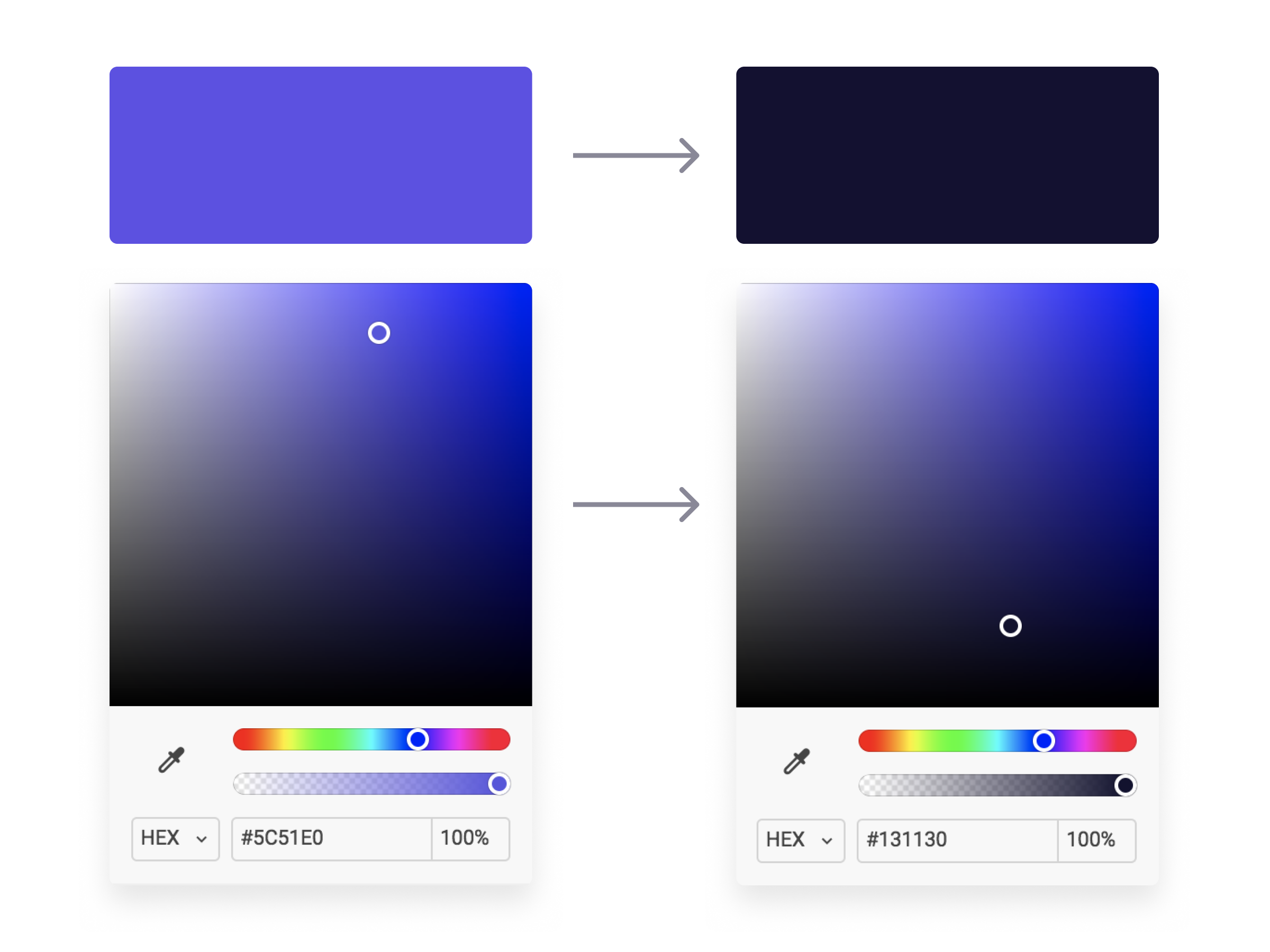
#5C51E0 will be our example hex code

Brand Black

Now, using my primary brand color, I’m going to create a black that is on brand with my primary color. I recommend not using a pure black color in the product you are working on (unless you’re brand color is pure black, then that works ¯\_(ツ)_/¯) as it can feel stark and inconsistent with other colors you are using.

It’s simple to do this, just start with your brand color (our purple in this case) and bring your slider straight down (or even down and a little to the right for saturation) until you reach a comfortable “black” that contains hue from your primary brand color without getting to the bottom. See below!

Now we have a “black” that is dark enough to use how we would normally use a black (text, background, etc.) but it won’t feel stark or contrasted when paired with our primary brand color. The cool hue provides familiarity to our “black” and serves as a basis for building out the rest of our color palette. Speaking of, let’s move on to opacities!

Opacity Galore

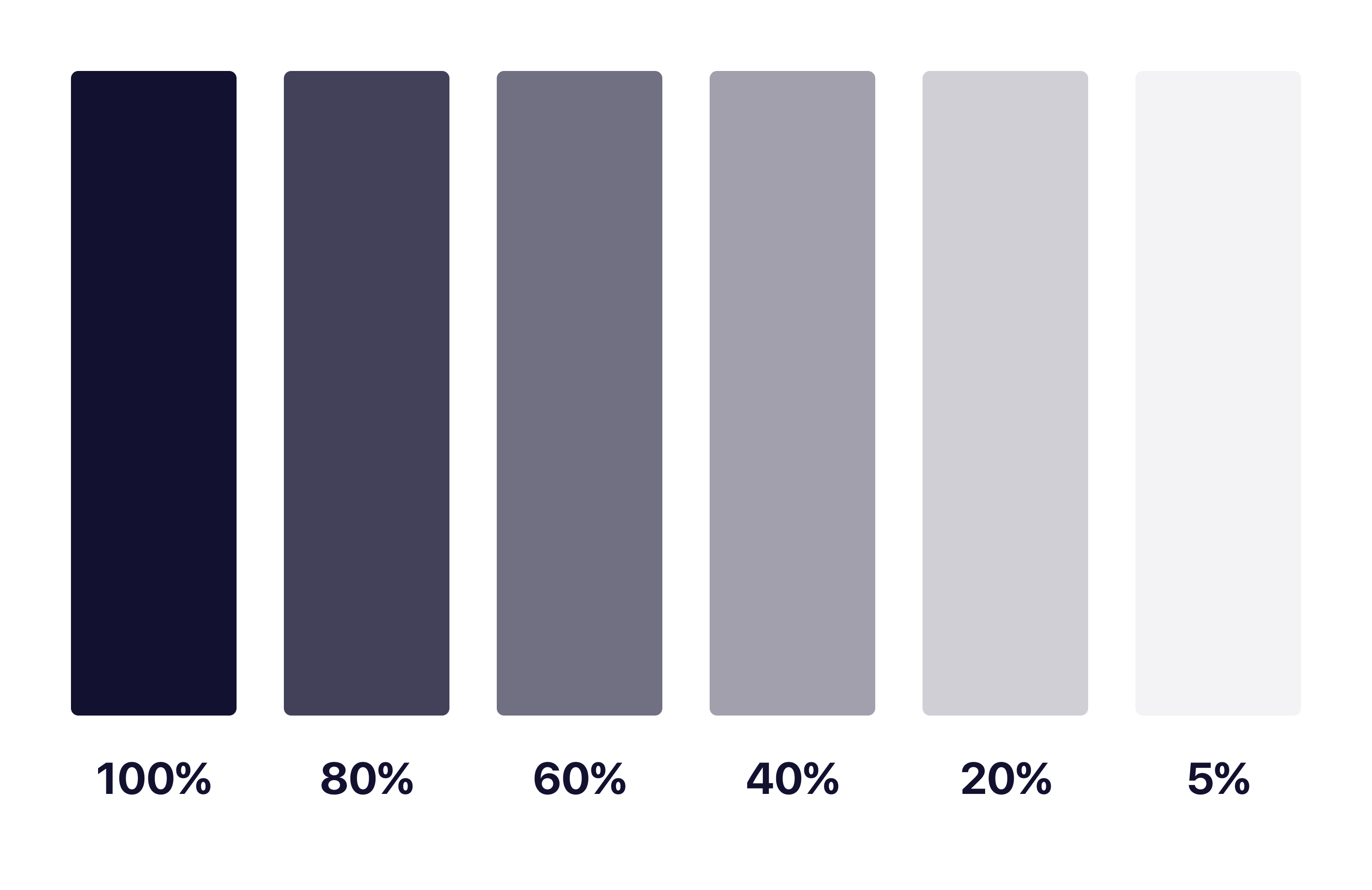
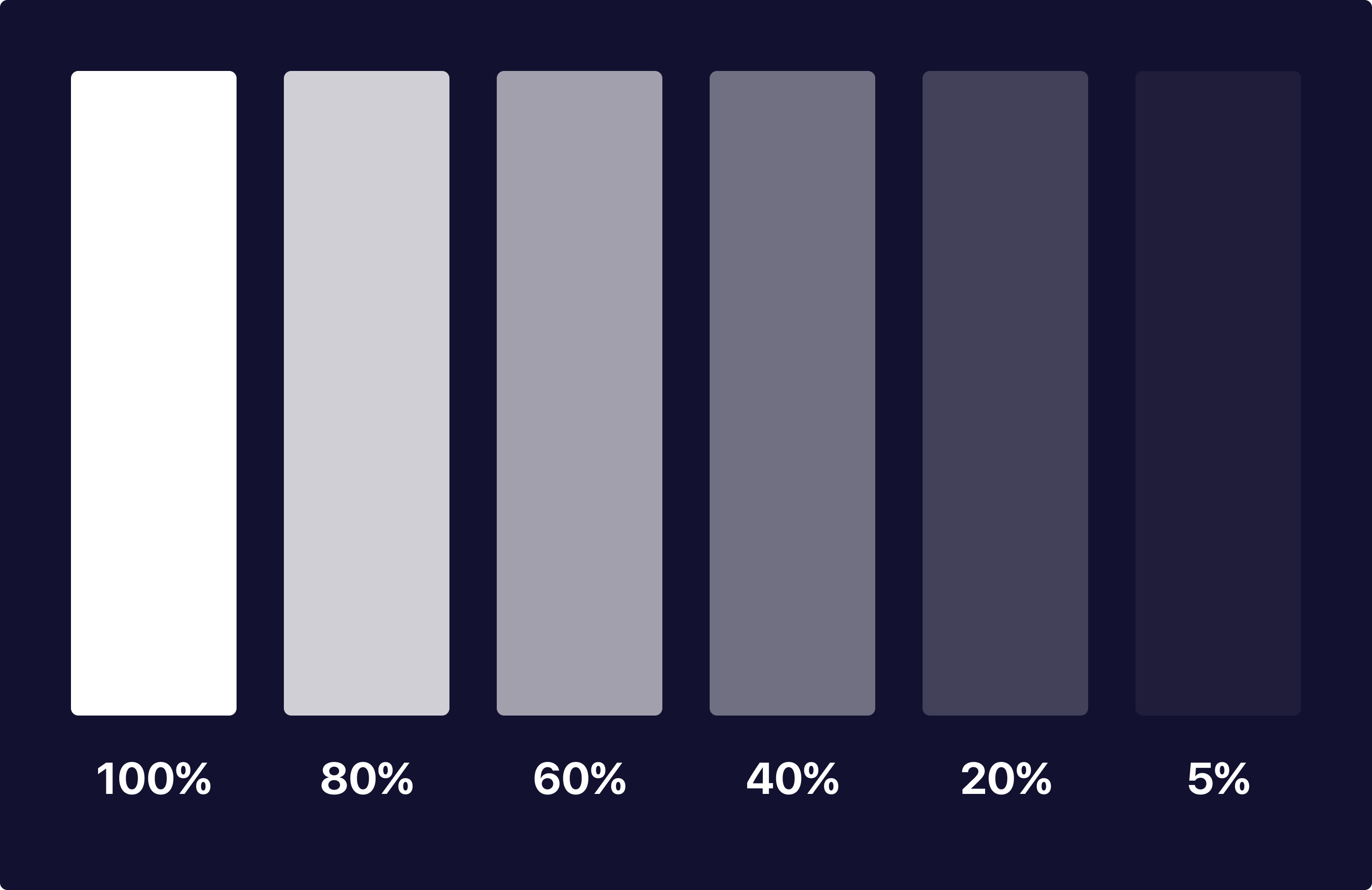
With our Brand Black created, we can now easily generate a color system to be used on elements and backgrounds throughout our product using opacities. I took our Brand Black and made 5 other copies, lowering the opacities by 20% until the last one where I go to 5% for light backgrounds keeping the background as a solid #FFFFFF white. Then, I do the same with a dark background using a pure #FFFFFF as the basis and lower the opacities the same way I did for the Brand Black. See below!

Blacks used
Whites used

As you can see, each of these colors have the same base hue and keeps them looking and feeling consistent as a palette throughout your application. No more having to guess what colors and hues will match with endless trial and error testing!

With matching hues, these neutral tones will serve as a basis for colors of different neutral elements. I tend to make a key for what each one of these will represent, and using them together makes for interesting combinations of elements that you can use to your advantage in different scenarios.

In Product Design Practice

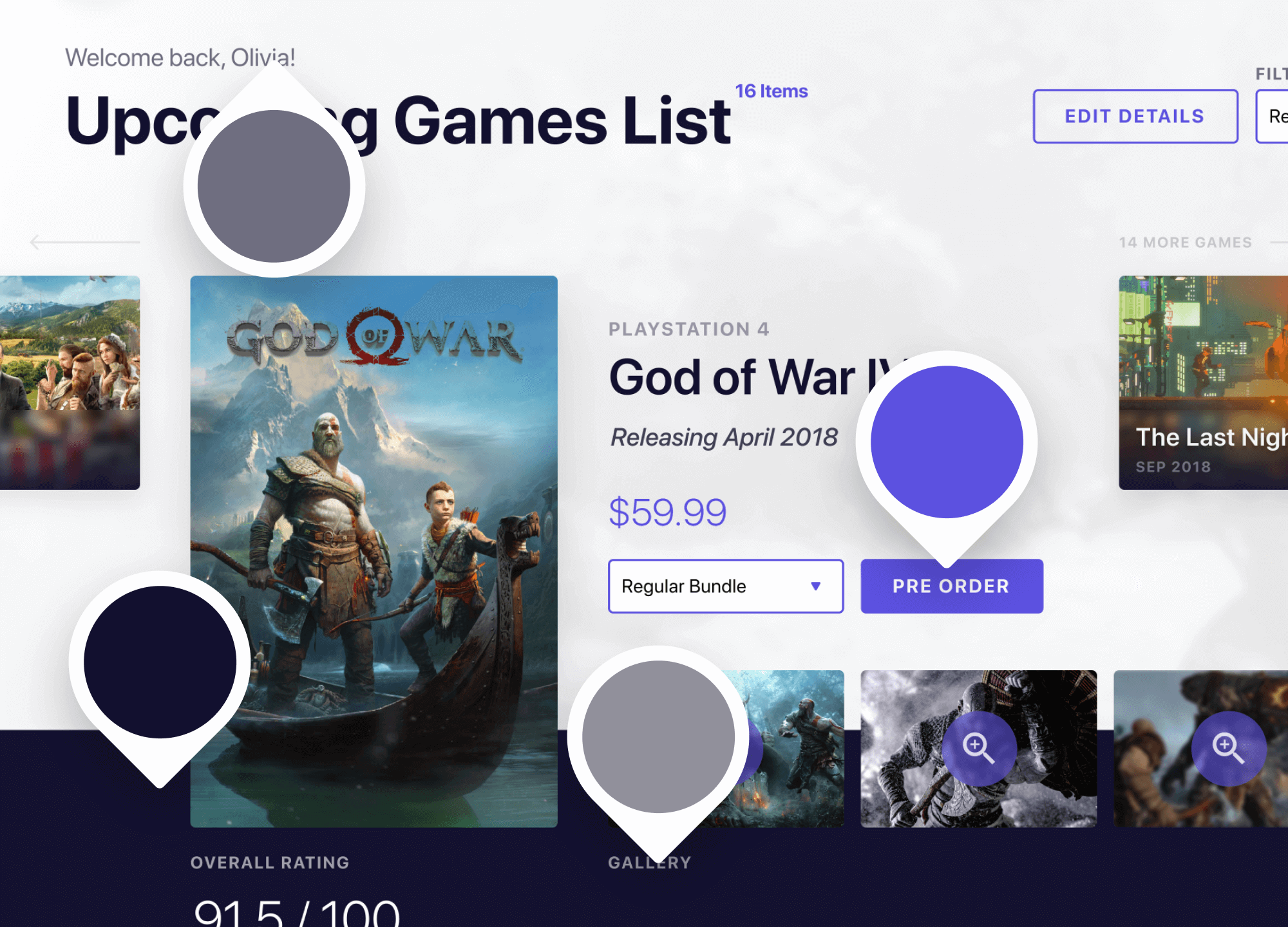
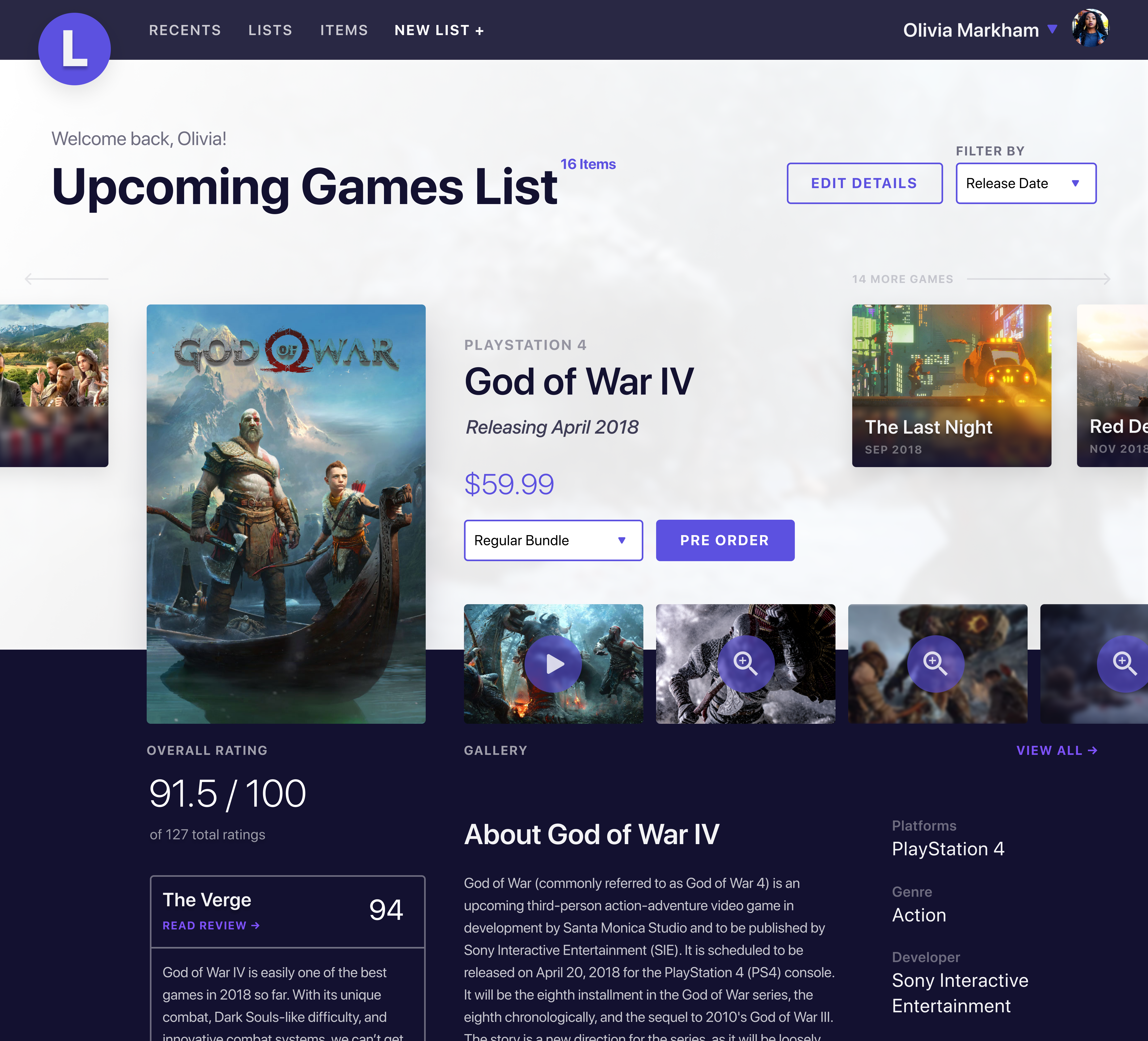
Here’s a quick concept example I made using the brand color and opacities I mentioned above:

Quick example I made, can't wait for GOW!

As you can see, each of the colors have a mixed hue of our primary brand purple color while keeping the overall feel and accessibility consistent for users. None of the colors feel stark or out of place and we have the ability to use our brand color as actions with neutral elements not feeling out of place or distracting.

What About Passing to Developers?

Okay so now you may be asking yourself how you can communicate this system with a developer and how it would work in code. It’s actually quite simple! Luckily for you, both mobile (yes, native too) and web technologies support an RGBA function as a way to specify color values. How does this work? Here’s a little key and example:

rgba(230,18,75,0.5);

// the first 3 numbers are your R, G, and B values (0 - 256).
// the last digit is the alpha, or opacity in our case
  // pass in a decimal number equal to the opacity you want 


// EXAMPLES

// For a black at 5% opacity
color: rgba(0,0,0,0.05);

// For a white at 80% opacity
color: rgba(256,256,256,0.8);

And voilà! You can create a key very simply for developers like you normally would with a style sheet of some sort, just exchange hex codes for RGBA function values for your neutral colors. I’d also recommend creating a guide around when and where to use certain opacities as a guide for your design team and development team to keep this usage consistent for user patterns.

Hope you found this useful and insightful!

June 19, 2020No Comments

Apps That Make MacOS a Better Operating System to Use

Even as an Apple fanboy that loves MacOS and iOS, I know that like any software, it isn’t perfect. Not to mention the lack of customization options and (at times) a cluttered interface.

Over time, I’ve found a few apps that replace default Mac apps that make MacOS a better operating system to use. I happily pay and advertise how useful they are just because of the sheer influence and impact they’ve had on my digital workspace and workflow.

In this article I’ll happily share them with you and (hopefully) dodge the dozens of questions I get every time I post a screenshot of something and happen to include one of those apps. Kidding! But no seriously, I need a place to direct people that ask this over and over ?

Bartender

https://www.macbartender.com - $15

Example of how the Bartender interface works

I’m the type of person that likes to have the least amount of visual clutter and items in my view when I’m working. I tend to get easily distracted by icons and notifications and have geared my digital workspace to avoid that.

Bartender has been one of the best apps for this quirk that I have as it takes those 10–20 icons that show in your top bar and hides them in a secondary bar you can toggle on/off easily. No more having to get distracted by random red notifications and status updates!

Alfred

https://www.alfredapp.com - free or $19 for full

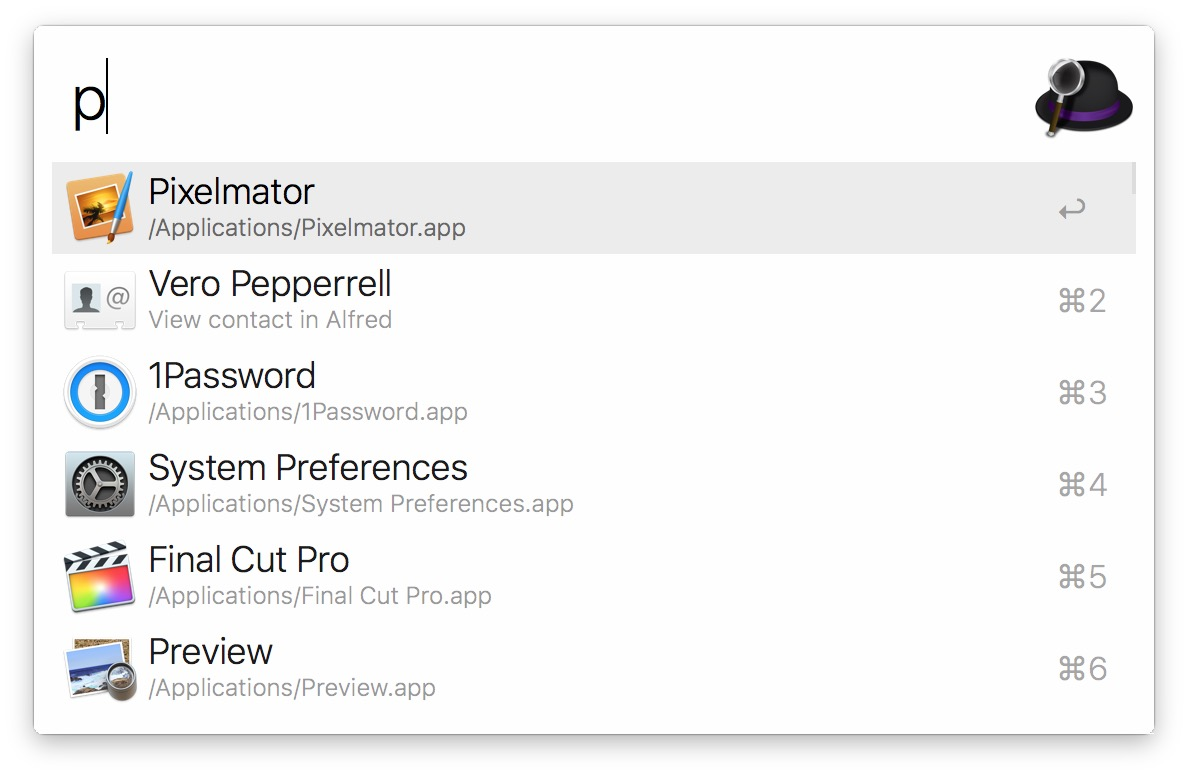
Alfred spotlight search interface

To be honest, I’m still baffled that Apple’s Spotlight feature is as poorly made as it is. It has become quite unpredictable, doesn’t accept keywords to better filter what a user wants, searches unusable files, mixes files with apps in search, etc.

This is where Alfred comes in. Alfred is basically a customizable version of what Spotlight should be. Not only can you customize the look of Alfred, you can also add and create “workflows” to make your own shortcuts that make your life easier. Alfred also uses certain keywords to better understand what you’re looking for and what actions you are trying to take. For example, if you just type a name it will search for apps, but if you type “open” then the file name, Alfred will switch from looking at your apps to looking at files you can open.

uBar

https://brawersoftware.com/products/ubar - $30

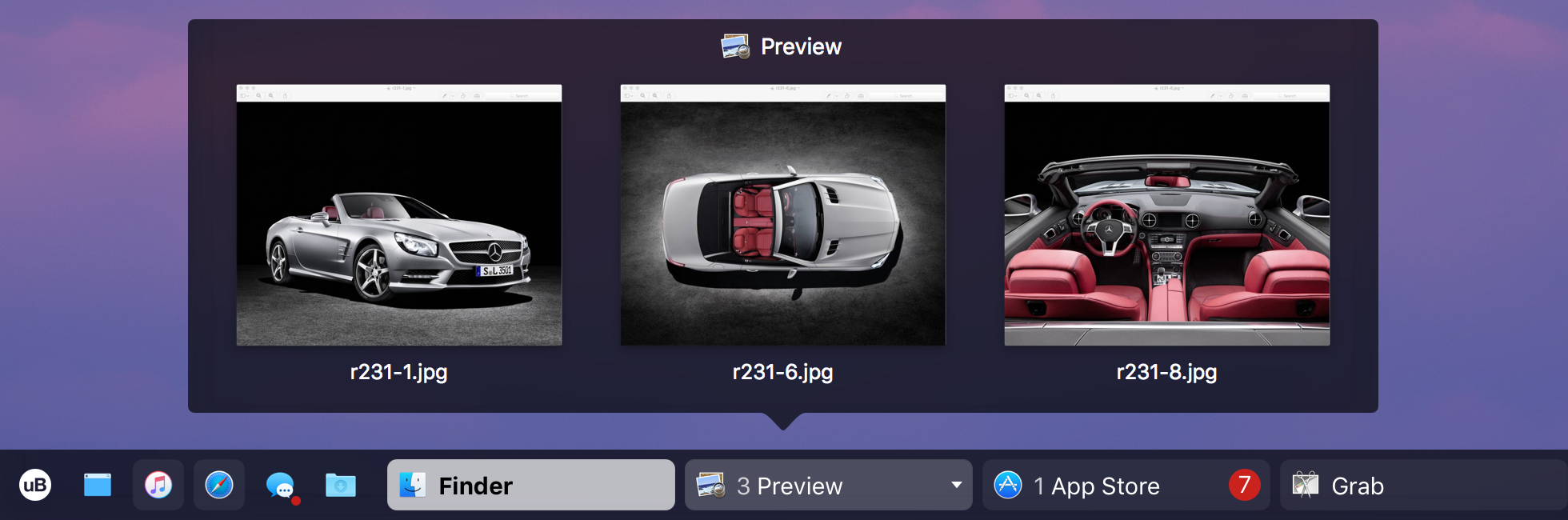
uBar dock interface

I get asked about this app the most and I can understand why if I’m being honest. While MacOS default dock gets the job done, it doesn’t try and do much more outside of that (possibly for better battery management). uBar takes your dock up a notch while also making it quite nicer to use, while customizable and nicer to look at.

uBar creates a smaller dock that can hold favorite apps you have, provide better context on notifications, generates window previews on hover, lets you choose which window to open to, lets you see a calendar on hover, and gives shortcut access to your main Finder folders and preferences just to name a few. I personally like that it feels more out of the way than the original dock and still feels in place in adjacency to the top bar. You can even change where it is positioned and the style of dock you’d like.

CloudApp

https://www.getcloudapp.com - free or $8 for Pro

Process of a screen recording in CloudApp

Just like Alfred, CloudApp makes the original MacOS screenshots ten times better. With CloudApp you can use a keyboard shortcut to take a screenshot (or record a gif!) and instantly get a link that you can share with others.

This app has been super helpful for me in my work life for sharing screenshots of design and code items I’m working on for instant feedback and no hassle of uploading. CloudApp is super fast and makes recording gifs when showing animations or click throughs very easy as well.

VEEER

https://veeer.io - free

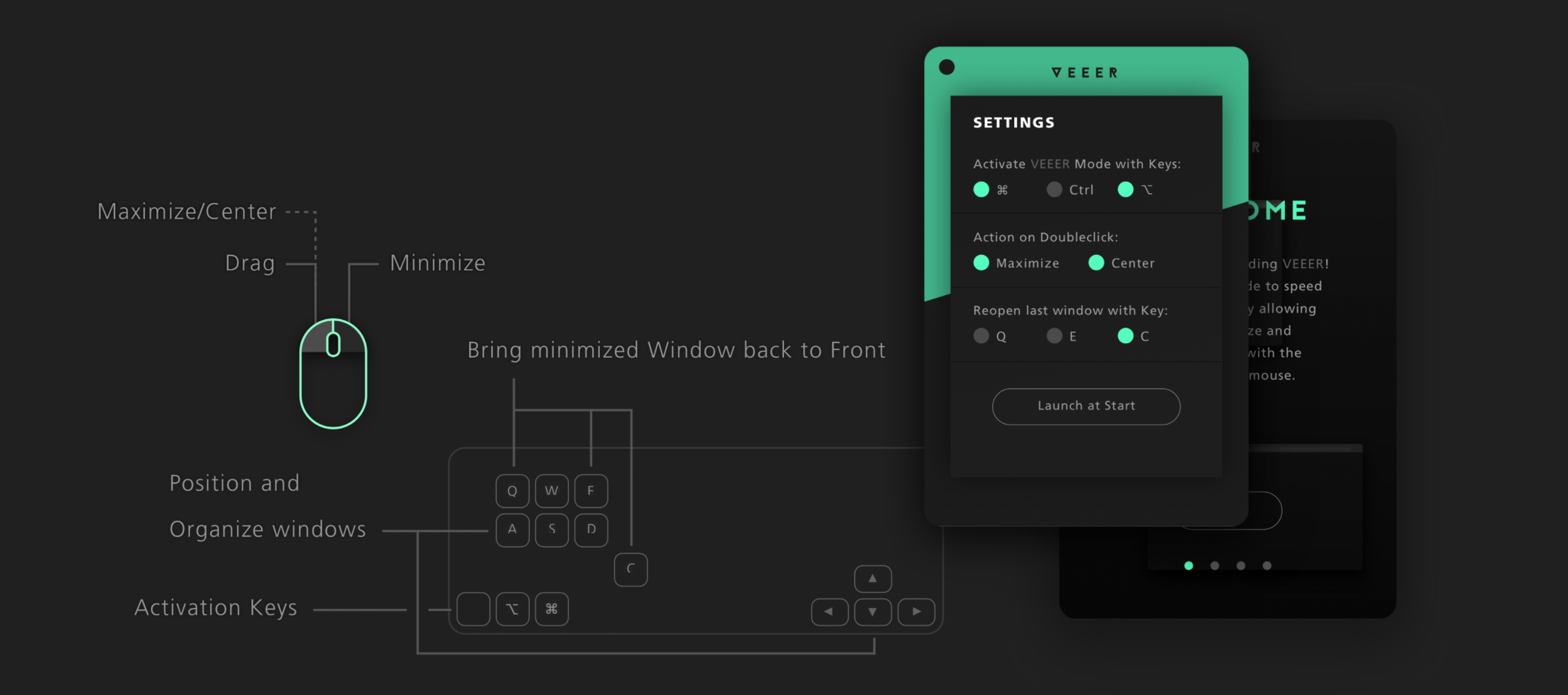
Overview of the VEEER user manual

While there are quite a few window managers out there for Mac, I personally use VEEER because of how lightweight it is. It does what I need it to without using up RAM and slowing down what I’m working on. It also has a few small unique shortcuts like the way it alternates full screen and minimized windows.


Hope you found this valuable and I hope you try out the apps I mentioned. Got other apps that make MacOS better? Let me know which others I need to try out!

June 15, 2020No Comments

How to Put Your Music on Streaming Services Without a Record Label

After releasing over 9 albums of music I’ve had a couple folks reach out to me about being inspired to make their own music (thanks to those that did!) and were wondering how to get started. Outside of what DAW to use (I use Ableton) and the hardware I prefer, the main question I’m asked is how to put music onto streaming services if you aren’t represented by a label.

Soundcloud and Bandcamp are great free options but aren’t widely used amongst consumers in comparison to others. To get your music on Spotify, Apple Music, Google Play, etc. I recommend using DistroKid.

How it Works

DistroKid is a subscription service that acts as your record label and take care of submitting and maintaining the music that you have online. The base subscription ($19.99 per year) gives you access to uploading unlimited tracks and albums. They don’t take any fees other than the subscription, so you keep all of your streaming profits. There are other tiers as well that give you things like scheduling uploads, having more than 1 artist, and daily stats if you would like.

With DistroKid you are also able to choose 15+ streaming services and can decide which you would not like them to show up on. DistroKid will generate your own individual “label” (which is just a random number) and will have this personalize this to support the music that you upload throughout different services of your choice.

Probably my favorite part of DistroKid is that it acts like a software company. I have my own dashboard with overviews on how much I am making from streaming outlets, and can easily upload music whenever I want. There is also a great support team that has happily helped me with some issues I’ve had with my artist page and typos on music I’ve put out for example.

Lastly, if you happen to have a team that helps you out with music, there is a separate “Team” tab that lets you divide earnings based on how much was agreed on. It’s all automated as well for when new profits come in. I personally do everything myself, but definitely seems helpful if you have a band or split profits with a mastering/mixing artist.

Hope you found this helpful, and would love to hear any music you put online using DistroKid. Be sure to send me a link on Twitter ?

cowart-avatar-5-small

If you find the content on my website, YouTube, and elsewhere helpful and want to show extra support, you can buy me a coffee here ☕

gengar

© 2012 - 2026